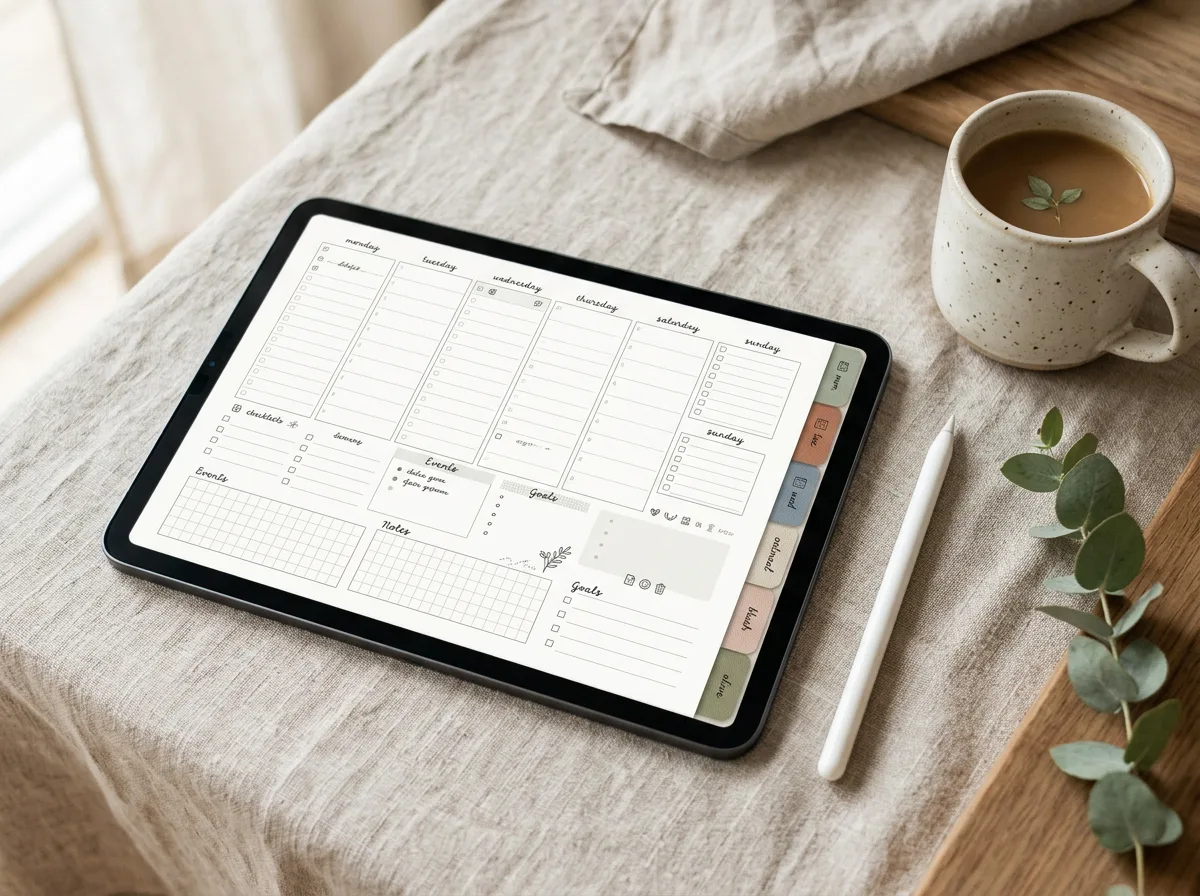
A hyperlinked PDF planner turns an iPad into a paper planner that never runs out of pages: tap a month tab, jump to a week, tap a day, write. The two apps most people use for this are GoodNotes and Notability. Both are excellent, and both open the same planner PDF, but they feel different day to day.
What a digital planner needs from an app
- Working hyperlinks, so tabs and calendar dates jump to the right page
- Smooth handwriting with a stylus such as Apple Pencil
- Easy page templates and duplication for extra notes pages
- Stickers or image import for decoration
- Reliable sync and backup
GoodNotes: the planner community’s favorite
GoodNotes treats each PDF as a notebook, with a page grid view, bookmarks and an outline panel. Hyperlinks inside imported PDFs work in its read mode and while you write, which is exactly what planners rely on. It also has a built-in elements and sticker library, so decorating a spread is quick.
It’s a strong pick if you plan the whole year in one file, love decorating pages, or want your planner on more than one device.
Notability: best when notes and audio go together
Notability opens PDF planners and follows their links too. Its standout feature is audio recording synced to your handwriting, so tapping a word replays what was said at that moment. That makes it great for students and anyone who mixes planning with meeting or lecture notes.
Its organisation is built around subjects and dividers rather than one big notebook, which some people find tidier and others find less planner-like.
Side-by-side
| GoodNotes | Notability | |
|---|---|---|
| Hyperlinked PDF planners | Yes | Yes |
| Notebook-style page grid | Strong | Good |
| Sticker & elements library | Built in | Image import |
| Audio synced to notes | No | Yes |
| Best for | Year-long planners, decorating | Students, notes plus planning |
Tip: both apps change features and plans regularly, so check the current version in the App Store before you buy a subscription.
How to import a planner (works in both)
- Download the PDF to your iPad’s Files app.
- Open the file, tap the Share icon, and choose GoodNotes or Notability.
- Import it as a new notebook or note, not as individual images.
- Test a tab: tap a month and check that it jumps to the right page.
If a link doesn’t jump, you’re usually in edit or writing mode on a page where tapping is treated as ink. Switch to read mode or the hand/select tool and tap again.
So, which one?
Choose GoodNotes if your planner is the main event. Choose Notability if your planner lives alongside class or meeting notes. Either way, a well-built planner works in both. Browse our digital planners, made with tested hyperlinks for both apps.
Leave a Reply