

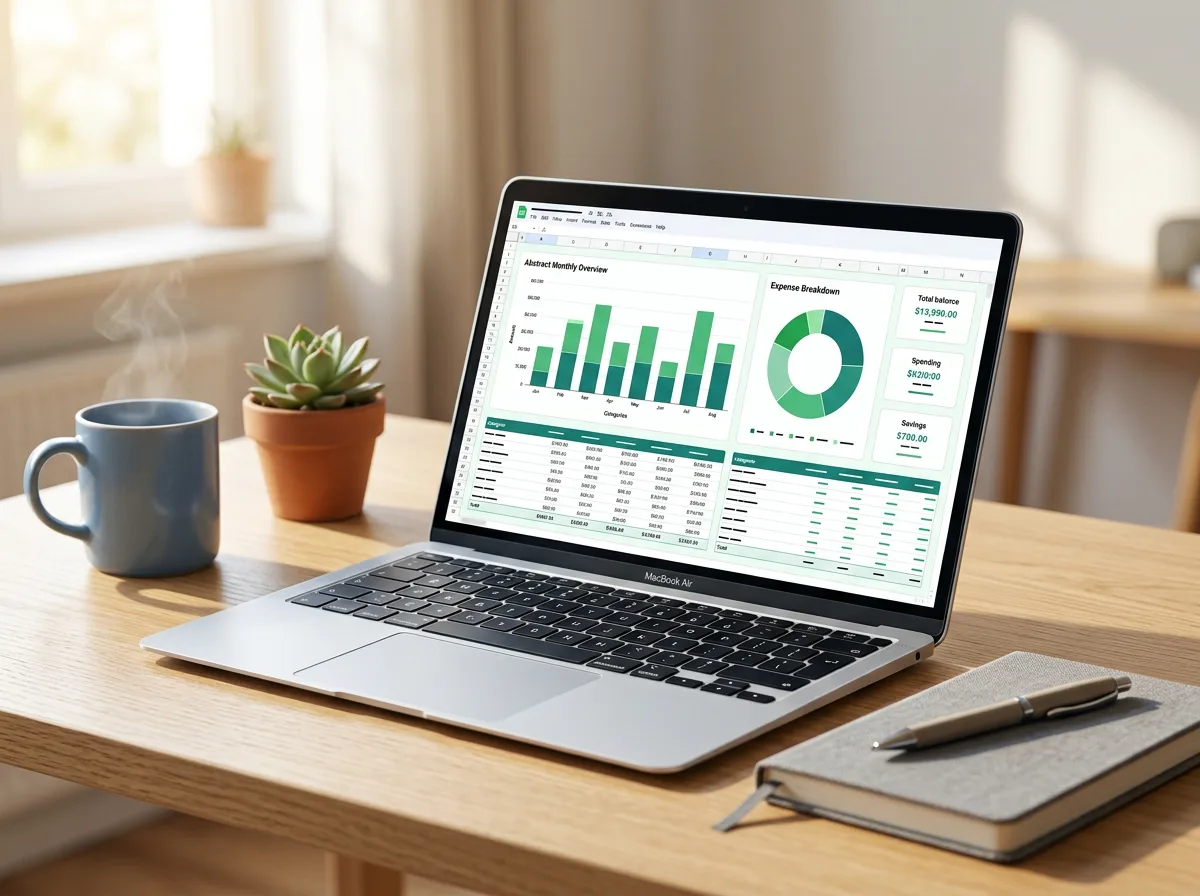

A zero-based budget doesn’t mean spending everything or having zero in the bank. It means every unit of income gets a job before the month starts: bills, groceries, savings, debt payments, fun money. When you’re done, income minus everything you’ve assigned equals zero. A spreadsheet is one of the easiest ways to do it, because the maths updates as you plan.
Short answer: to make a zero-based budget spreadsheet, list your expected monthly income at the top, list every expense, savings and debt category below with a planned amount, and add a cell that calculates income minus total planned. Adjust the categories until that cell shows exactly zero. Then add an “actual” column to record real spending and a “difference” column to compare the two during the month.
How zero-based budgeting works
The idea is simple:
Income − (expenses + savings + debt payments) = 0
If money is left over, you assign it to something, such as an emergency fund or an extra debt payment. If you’re over, you trim categories until you’re back to zero. Savings count as a “job”, so a zero-based budget can still have you saving a large share of your income.
The layout
You only need one sheet to start. Set up these columns:
| Column | Header | What goes in it |
|---|---|---|
| A | Category | Rent, groceries, transport, emergency fund… |
| B | Group | Fixed, Variable, Savings, Debt, Fun |
| C | Planned | What you plan to spend or save this month |
| D | Actual | What you really spent, updated during the month |
| E | Difference | Planned minus actual |
Above the table, add an income section with one row per income source (salary, freelance, benefits, side business).
Step-by-step setup
1. Add your income
In cells A2 to A4, write your income sources, and put the expected amounts in C2 to C4. Use the amount you actually receive (after tax and deductions), not your gross salary. In C5, total them:
=SUM(C2:C4)
Label A5 “Total income”.
2. List your categories
Starting around row 8, list every category. Be thorough: forgotten categories are why budgets fail. Common ones include rent or mortgage, utilities, phone and internet, groceries, transport, insurance, subscriptions, personal care, gifts, eating out, emergency fund, other savings goals, debt payments and a small “miscellaneous” buffer.
3. Enter planned amounts
Fill column C with your planned amount for each category. Start with fixed costs, then essentials, then savings and debt, then flexible spending.
4. Total the plan
Below the last category (say row 30), add:
=SUM(C8:C29)
Label it “Total planned”.
5. Add the zero check
This is the heart of the sheet. In a cell near the top, for example C6, add:
=C5-C30
Label it “Left to assign”. Your goal is to make it read exactly 0. Positive means money still needs a job; negative means you’ve planned more than you earn.
6. Make the zero check obvious
Add conditional formatting so the cell turns green at zero and red when it isn’t:
- Google Sheets: Format > Conditional formatting, choose “Is equal to” 0 with a green fill, then add a second rule “Is not equal to” 0 with a red fill.
- Excel: Home > Conditional Formatting > Highlight Cells Rules > Equal To, then add a second rule through New Rule > Format only cells that contain > Cell Value > not equal to > 0, with a red fill.
7. Track actuals and differences
As the month goes on, update column D with what you’ve spent, either from receipts or by checking your bank app weekly. In E8, add:
=C8-D8
Fill it down the column. A positive number means you’re under budget in that category; a negative one means you’ve overspent.
An example month
Here’s how a simple plan might look with a take-home income of 3,000 (in whatever currency you use):
| Category | Group | Planned |
|---|---|---|
| Rent | Fixed | 1,100 |
| Utilities and internet | Fixed | 180 |
| Groceries | Variable | 400 |
| Transport | Variable | 150 |
| Insurance | Fixed | 120 |
| Subscriptions | Fixed | 40 |
| Eating out and fun | Fun | 200 |
| Emergency fund | Savings | 400 |
| Credit card payment | Debt | 300 |
| Gifts and occasions | Variable | 60 |
| Miscellaneous buffer | Variable | 50 |
| Total planned | 3,000 |
Income 3,000 minus planned 3,000 leaves 0 to assign: a balanced zero-based budget.
Helpful extras
- Group totals: use SUMIF to see how much goes to each group: =SUMIF(B8:B29,”Savings”,C8:C29).
- A percentage column: =C8/$C$5 shows each category as a share of income.
- Monthly tabs: duplicate the sheet each month so you can compare over time.
- A chart: a simple pie or bar chart of planned amounts by group makes the plan easier to understand at a glance.
If you’d rather start from a finished layout, browse our Excel and Google Sheets templates and adapt the categories to your own life.
Budgeting with irregular income
Freelancers and anyone paid by commission can still use a zero-based budget:
- Budget on your lowest typical month, not your best.
- Prioritise categories in order: essentials first, then savings and debt, then flexible spending.
- Assign extra income when it arrives, adding it to the income section and giving it a job right away.
- Build a buffer so that one month’s income can fund the next month’s budget.
If you run a small business alongside your personal finances, keep them separate. Our guide to a simple bookkeeping spreadsheet for small business shows how to track business income and expenses on their own.
Common mistakes
- Budgeting with gross income instead of take-home pay.
- Forgetting irregular costs like annual subscriptions, car maintenance or birthdays. Divide yearly costs by 12 and budget monthly.
- Making categories too tight, which leads to giving up mid-month.
- Not checking actuals until the end of the month.
- Leaving no buffer for small surprises.
FAQ
Does zero-based budgeting mean I have no money left?
No. It means every unit of income is assigned to something, including savings. Your bank balance doesn’t drop to zero; your “left to assign” figure does.
What’s the difference between a zero-based budget and the 50/30/20 rule?
The 50/30/20 rule splits income into broad percentages for needs, wants and savings. A zero-based budget assigns specific amounts to specific categories. Some people use 50/30/20 as a starting guide and then fill in a zero-based plan.
Should I use Excel or Google Sheets for budgeting?
Either works, and the formulas above are the same in both. Google Sheets is free and easy to share with a partner; Excel offers more offline features and works well if you already use it.
Leave a Reply