

A to-do list tells you what to do. A time-blocked calendar tells you when. That small shift is why so many people who feel busy but unproductive find time blocking useful: it forces you to admit how much time your tasks really take and to decide in advance where they fit.
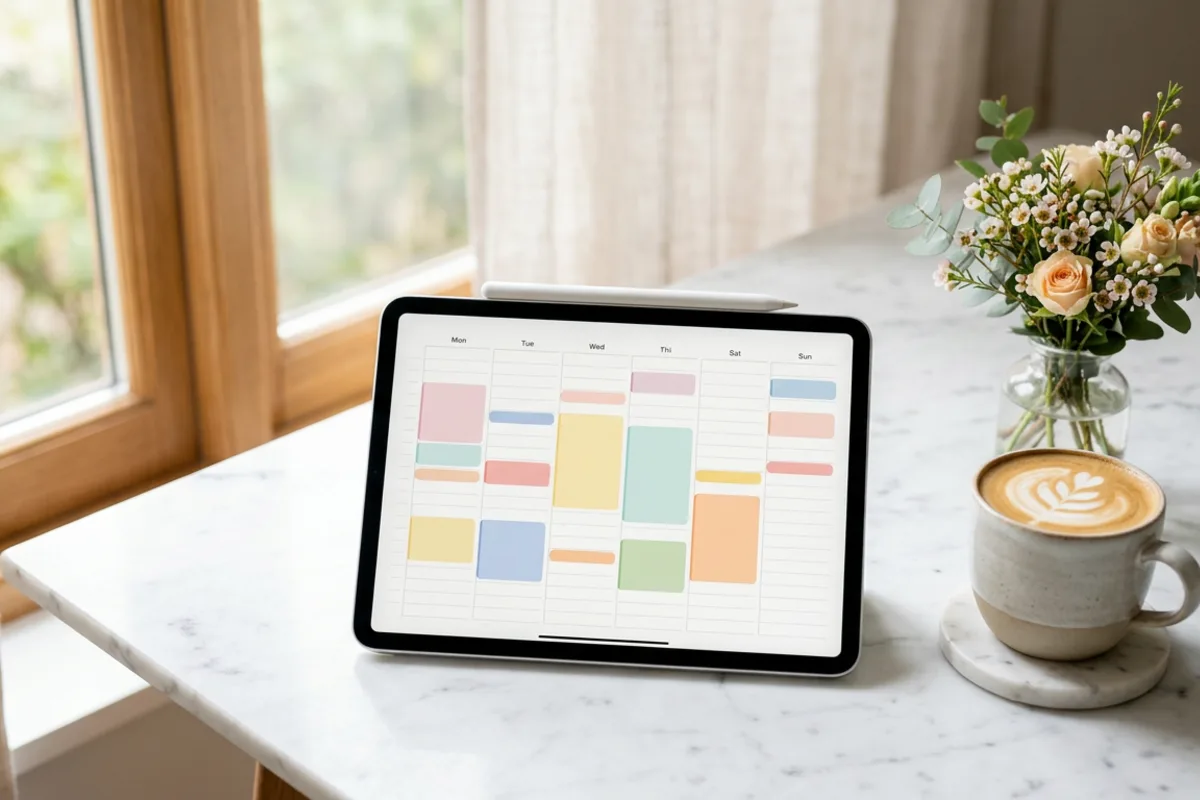
Short answer: to time block in a digital planner, list your fixed commitments first, estimate how long each priority task will take, then draw blocks for those tasks on your daily or weekly page, grouping similar small tasks into one batch block and leaving buffer time between blocks. Color-code by type of work, review the plan each evening, and move blocks rather than deleting them when the day changes.
Why a digital planner suits time blocking
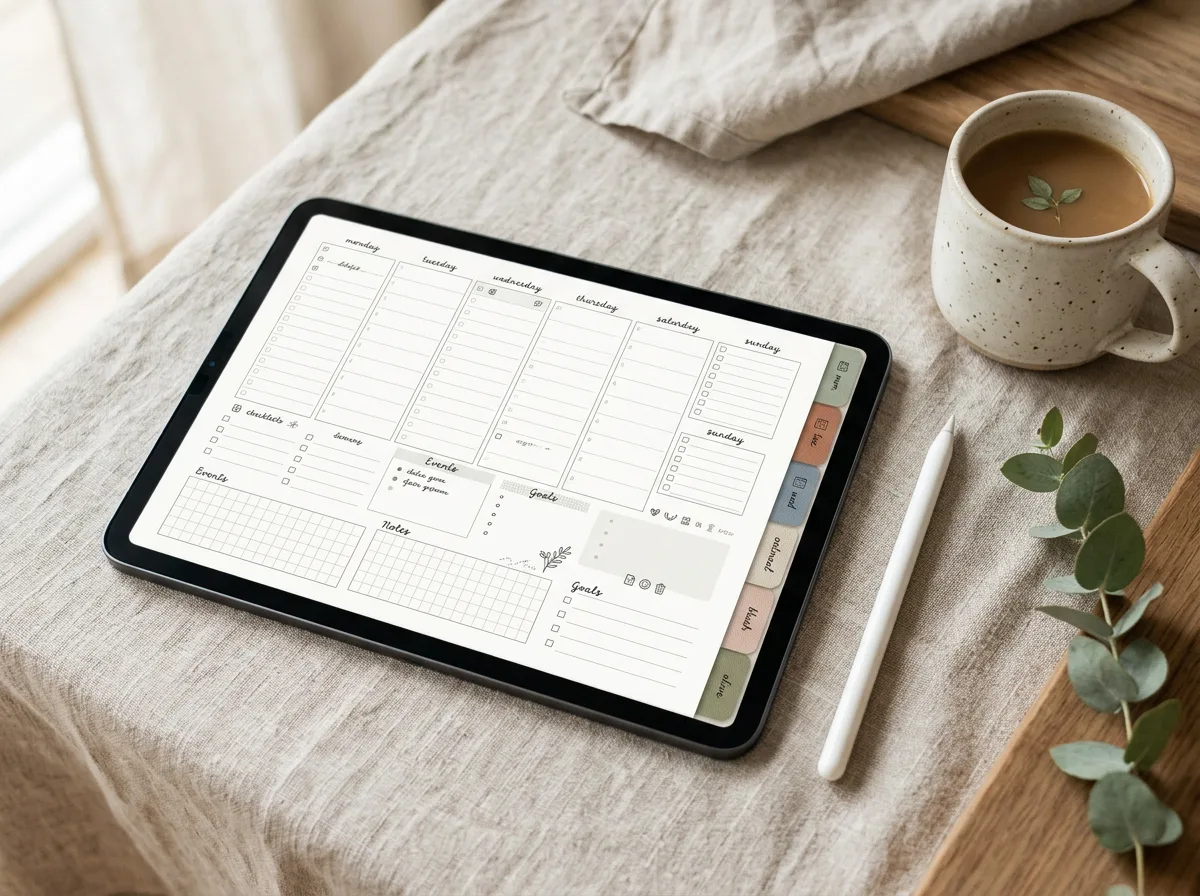
Paper works, but a PDF planner on a tablet has a few real advantages for this method:
- Moveable blocks. In apps like GoodNotes or Notability you can lasso a block and drag it to another time slot when plans change.
- Reusable templates. Duplicate a “typical week” page instead of redrawing it.
- Unlimited pages. Messy replanning doesn’t cost you a clean notebook.
- Hyperlinked layouts. Many planners link monthly, weekly and daily pages so you can jump between big-picture and hourly views.
If you haven’t picked an app yet, our comparison of GoodNotes vs Notability covers the differences that matter for planner users.
Before you start: choose your layout
Time blocking needs a page with a time column. Look for one of these layouts:
| Layout | Best for | Watch out for |
|---|---|---|
| Daily hourly page | Detailed days, lots of meetings | Can feel rigid if your work is unpredictable |
| Weekly vertical (columns per day with hours) | Seeing the whole week at once | Small slots on a phone-sized screen |
| Weekly horizontal with a schedule strip | Light blocking plus notes | Less space for precise times |
You can find planners with all three in our digital planners collection.
The weekly time-blocking method, step by step
Step 1: brain-dump the week
On a notes page, list everything you need or want to do this week: work tasks, errands, appointments, exercise, calls, admin. Don’t organise yet.
Step 2: mark the fixed blocks first
Add commitments that can’t move: meetings, classes, school runs, shifts, appointments. These are the walls of your week; everything else fits around them.
Step 3: pick your top priorities
Choose three to five tasks that would make the week a success. Give each one a block in the first available slot where you’ll have the most energy. Many people find mornings best for focused work, but use your own pattern.
Step 4: estimate honestly and add buffer
Write a realistic duration next to each task, then add a margin. A common rule of thumb is to add 25 to 50 percent to your first estimate, especially for tasks you haven’t done before. Leave 10 to 15 minutes between blocks for transitions.
Step 5: batch the small stuff
Emails, invoices, quick calls and admin don’t each need their own block. Group them into one or two “admin” blocks a day. This stops small tasks from scattering through your focus time.
Step 6: protect personal time
Block meals, exercise, rest and family time too. If they’re not on the page, work tends to expand into them.
Step 7: review each evening
Spend five minutes at the end of the day comparing what you planned with what happened. Move unfinished blocks to tomorrow, and note any task that consistently takes longer than you estimated.
Color-coding that actually helps
Keep it to four to six colors so the page stays readable at a glance. One simple system:
- Blue: deep, focused work
- Green: meetings and calls
- Yellow: admin and email
- Pink: personal, health and family
- Grey: travel and commuting
- Orange: learning or side projects
Use the highlighter tool at partial opacity so you can still write on top of a block. Save your colors as favorites in your app’s pen settings so you aren’t hunting for them every time.
Variations worth trying
- Task batching: grouping similar tasks (all calls, all design work) into one block.
- Day theming: giving each day a focus, such as Monday for planning, Tuesday for client work and Friday for admin.
- Timeboxing: setting a fixed time limit for a task and stopping when it ends, useful for perfectionists.
- Half-day blocks: if hourly plans feel too strict, divide each day into morning, afternoon and evening blocks instead.
When the day falls apart
It will. A sick child, an urgent client request or a long meeting can wipe out half your plan. That’s not a failure of the method; it’s what the method helps you handle.
- Pause and look at what’s left of the day.
- Decide which remaining block matters most and protect it.
- Drag the rest to later in the week rather than deleting them.
- During your weekly review, ask whether you’re consistently overbooking.
Pairing time blocking with a short weekly review routine is the easiest way to keep your plan realistic week after week.
Common mistakes
- Planning every minute with no buffer.
- Blocking tasks without estimating how long they take.
- Scheduling deep work during your lowest-energy hours.
- Treating the plan as fixed instead of a draft you adjust.
- Forgetting to block breaks, which leads to skipping them.
FAQ
How far ahead should I time block?
Most people block one week at a time, adding detail the evening before each day. Blocking more than a week ahead usually means a lot of rescheduling.
Is time blocking good for people with unpredictable jobs?
Yes, in a lighter form. Block your top one or two priorities and a few flexible “reactive” blocks for whatever comes up, rather than planning every hour.
What’s the difference between time blocking and a to-do list?
A to-do list records tasks; time blocking assigns each task a specific time. Many people use both, keeping a list for capture and blocks for scheduling.
Leave a Reply